To invite members to your Invivo Workspace organization use the following steps:
- Click the account name (top right corner), then Admin
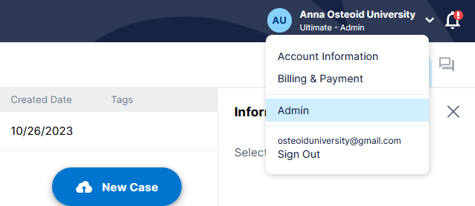
- In the Admin page click Organization
- Then Click the blue Invite button (lower right corner)
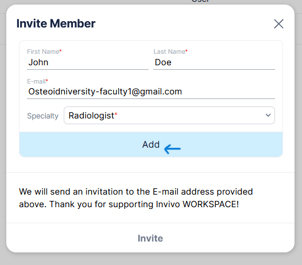
- Insert your invite recipients information (name, email, specialty), then click Add
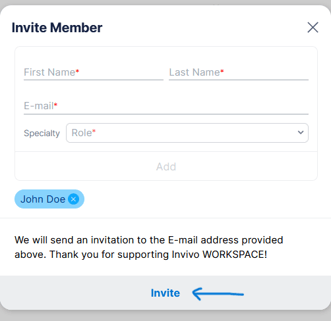
- Once all invitees have been added, click Invite to send you invitation to join your organization.
- Invitees will appear in your Organization page as Pending until the invitation has been accepted by the invitees.
